
Claude
Connect Claude to CATS to search candidates, review jobs, and summarize recruiting information in plain language. The CATS MCP is read-only: Claude can look up CATS records but cannot create, change, or delete them.
The connection is tied to your Claude account. Once set up, it works in Claude on the web, the desktop app, and the mobile apps, and in Claude Code when you sign in with the same Claude account.
Before you begin
Confirm your organization allows it. Claude reads candidate, contact, job, and company data from CATS, and that data is sent to Anthropic for processing. Check with your IT team or technology lead before connecting.
Use the right Claude account.
- Team or Enterprise: Anthropic does not use commercial account data to train its models by default. See Is my data used for model training?
- Personal (Free, Pro, or Max): Only if your organization allows it. Before connecting, go to Settings > Privacy and turn off Help improve our AI models. See: How do I change my model improvement privacy settings?
Turning off model training does not stop Anthropic from processing your data or storing it under its retention policies.
Do not use the thumbs up / thumbs down buttons in chats that contain CATS data. Submitting feedback sends the full conversation to Anthropic, where it may be kept and used for training on any plan.
Have your CATS MCP key ready.
Team and Enterprise plans: read this first
- Only a Claude Owner (or, on Enterprise, a member whose role can manage libraries) can add the CATS connector. Members connect after an Owner adds it.
- The key is shared. Everyone in your Claude organization who uses the CATS connector accesses CATS with the key the Owner entered. The CATS MCP is currently read-only, so this shares read access only. Use a key whose CATS access is appropriate for everyone in your Claude organization.
Add the connector
Free, Pro, or Max
- Go to Settings > Customize > Connectors.
- Click + Add, then Add custom connector.
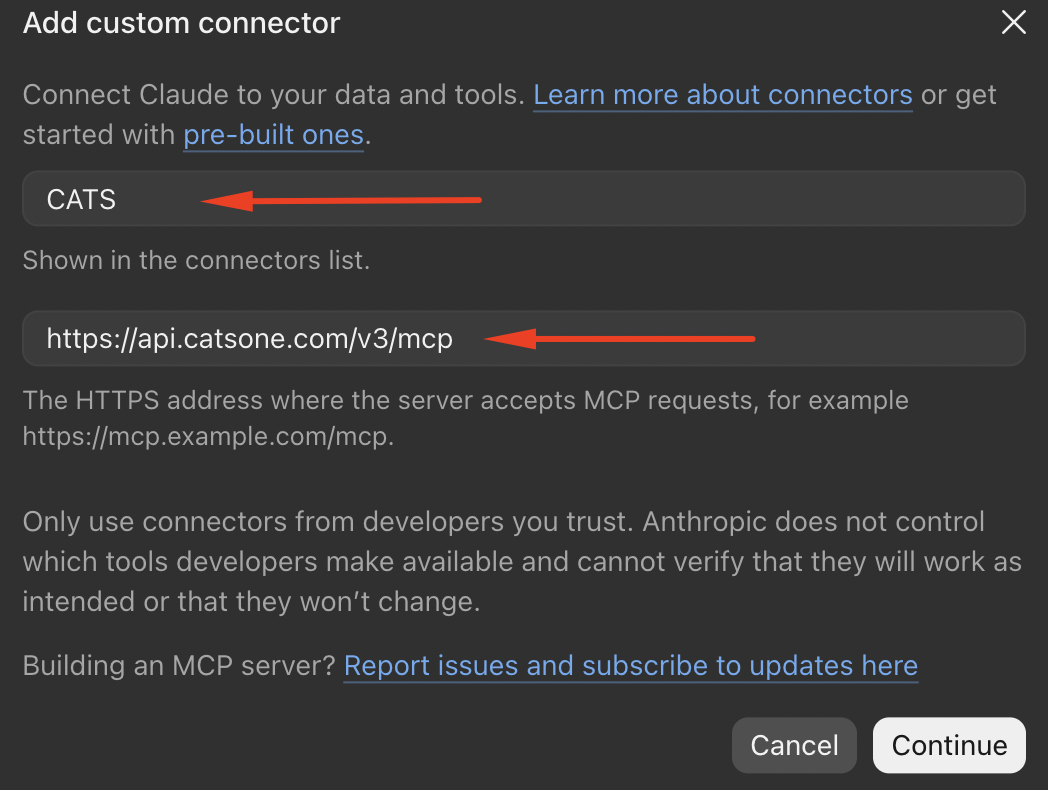
- Enter the following, then click Continue:
| Field | Value |
|---|---|
| Name | CATS |
| MCP server URL | https://api.catsone.com/v3/mcp |
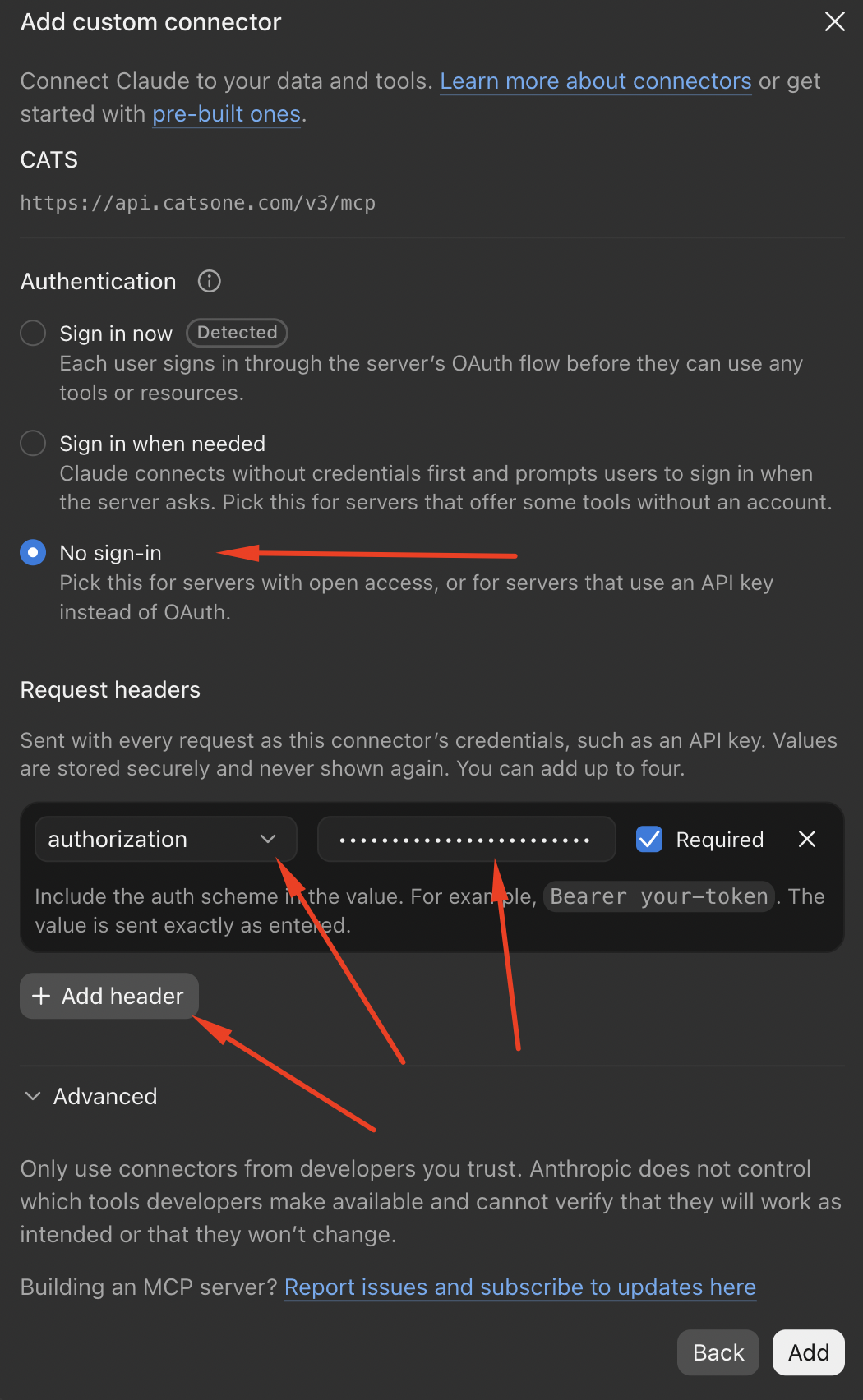
- Under Authentication, select No sign in.
-
Under Request headers, click + Add header, select
authorizationas the header name and enter this value:Bearer CATS_MCP_KEYReplace
CATS_MCP_KEYwith your key. Keep the word Bearer and one space before the key. Claude sends the value exactly as entered. - Click Add.
Free plans are limited to one custom connector.
Team or Enterprise
Owner:
- Go to Organization settings > Connectors.
- Click Add, hover over Custom, and select Web.
- Follow steps 3 to 6 above.
Members:
- Go to Settings > Customize > Connectors.
- Find CATS (it has a Custom label) and click Connect.
Optional: limit which tools Claude can use
Go to Settings > Customize > Connectors, select CATS, and set any tool you don't want Claude to use to Blocked.
Use CATS in a chat
In a new chat, click +, select Connectors, and confirm CATS is enabled. If Claude asks permission to use a CATS tool, approve it.
Try your connection
List five jobs in CATS and show their titles and statuses.
Find candidates in CATS who mention Python. Show their names, current titles, and locations.
If Claude answers without using CATS, include "in CATS" in your request.
Troubleshooting
- Authentication error: The key is wrong or is missing
Bearerand one space. Saved keys can't be viewed or edited. Remove the CATS connector and add it again. On Team or Enterprise, the Owner does this and members reconnect. - No Request headers section: Anthropic is rolling this feature out gradually, and your Claude account or organization doesn't have it yet. CATS cannot be connected to Claude until it does.
- CATS doesn't appear in a chat: Click + > Connectors and make sure CATS is enabled.
- A specific tool is unavailable: Go to Settings > Customize > Connectors, select CATS, and check whether the tool is set to Blocked.
For more details, see Anthropic's custom connector guide and adding a connector by URL.