
ChatGPT
Connect ChatGPT to CATS to search candidates, review jobs, and summarize recruiting information using natural language. CATS MCP provides read-only access to your data.
Before you begin
Review your organization’s policies before connecting CATS to ChatGPT. Information retrieved through the connection may include candidate, contact, job, and company data, and relevant results are sent to OpenAI for processing. Before connecting, check with your IT team or technology lead to confirm your organization allows sharing CATS data with ChatGPT. See OpenAI’s Data controls in ChatGPT.
- Business or Enterprise workspace: Use your organization’s approved ChatGPT workspace when available. OpenAI does not use ChatGPT Business or Enterprise workspace data to train its models by default. Make sure you are using the organization’s workspace when working with CATS data.
- Personal account: If your organization permits using a personal ChatGPT account, disable model training before connecting CATS. Open ChatGPT on the web and go to Settings → Data controls to review and disable the model-training options. A personal Plus or Pro subscription is different from a Business or Enterprise workspace.
Disabling model training does not prevent OpenAI from processing the information or make it exempt from applicable storage and retention policies. Your account settings and your organization’s requirements still apply.
Once you have confirmed the appropriate account and settings, have your CATS MCP key ready.
ChatGPT desktop app
- Open Settings → Plugins.
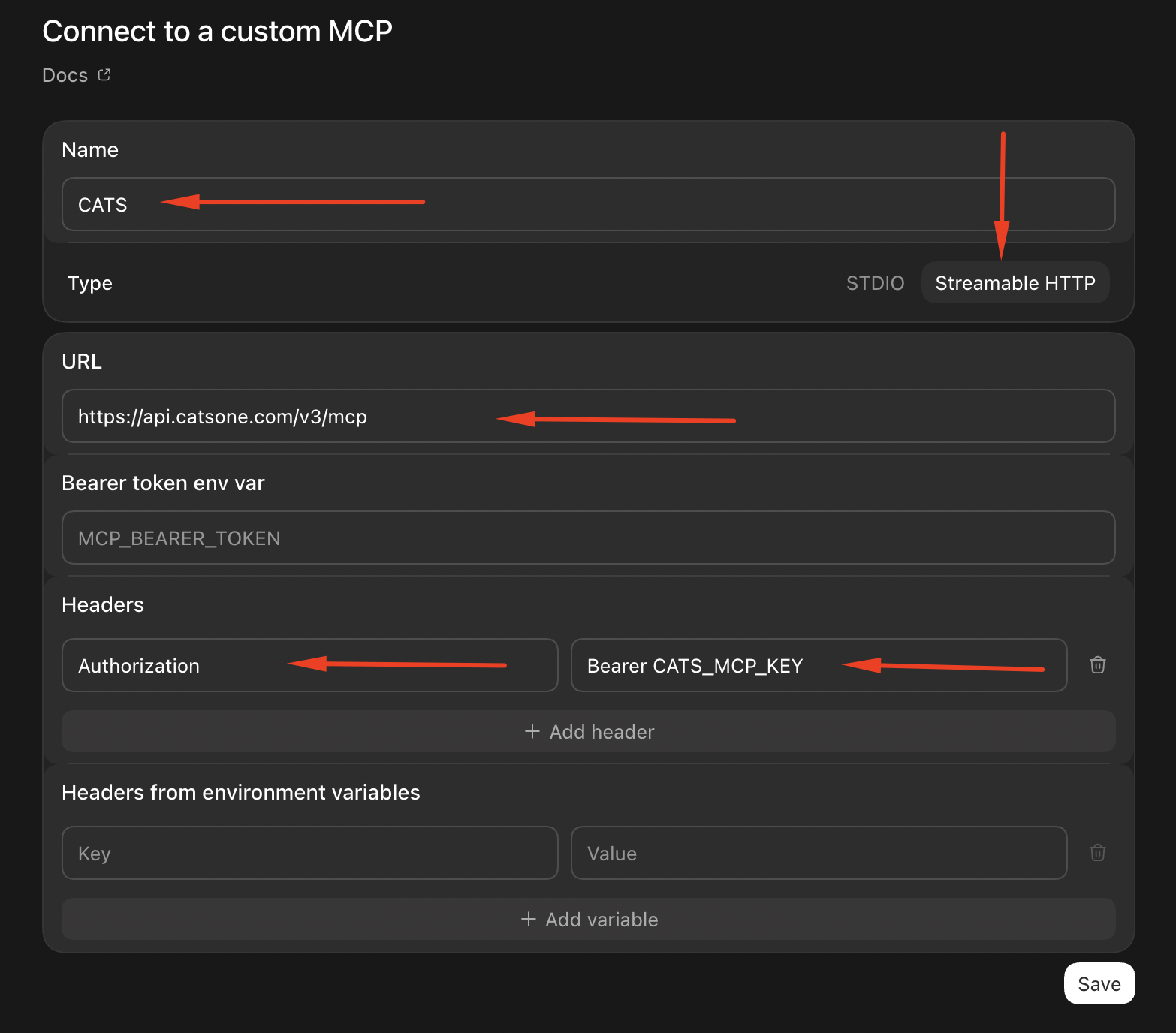
- Click Add → Add MCP server:
- Under HTTP headers, add an Authorization header using this format:
| Field | Value |
|---|---|
| Name | CATS |
| Type | Streamable HTTP |
| URL | https://api.catsone.com/v3/mcp |
| Headers (Key) | Authorization |
| Headers (Value) | Bearer CATS_MCP_KEY |
- Replace
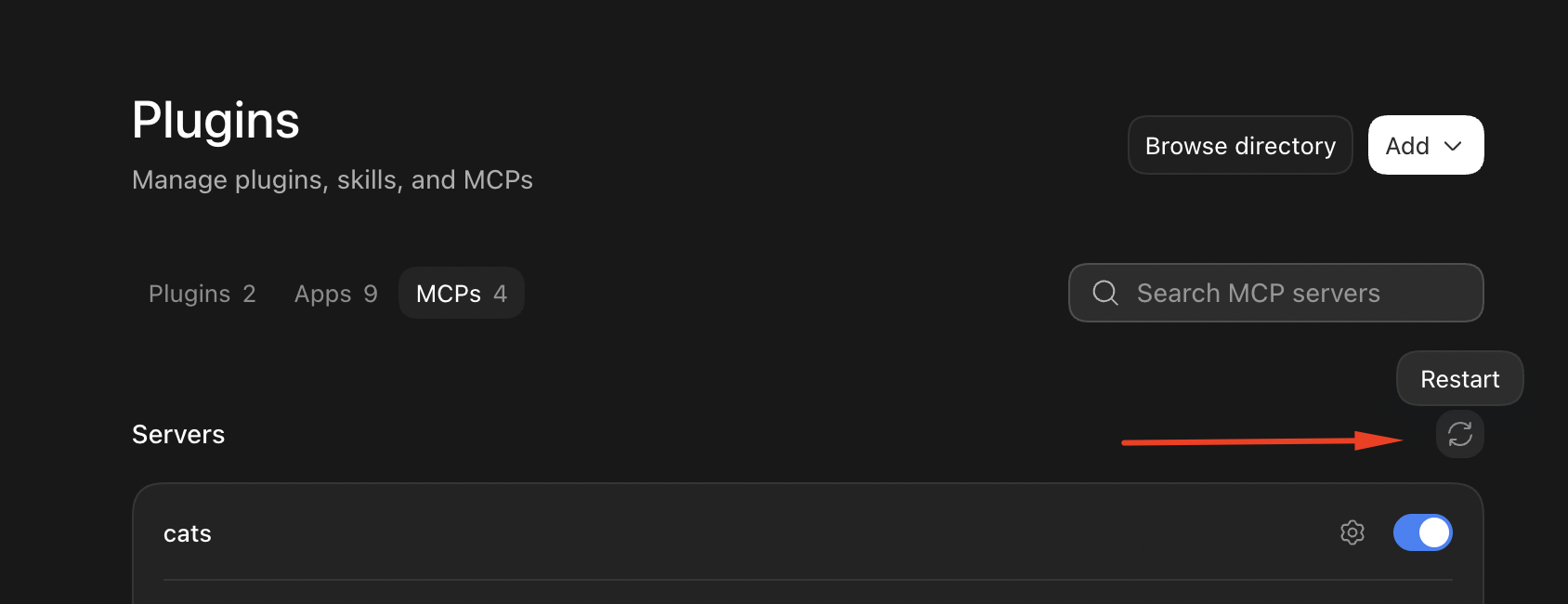
CATS_MCP_KEYwith your CATS MCP key. Keep Bearer followed by one space before the key. Leave the bearer-token environment-variable field and environment-variable header fields blank. - Save the connection, then select Restart.
- Start a new chat and enter
/mcpto check that CATS appears among your connected servers.
These steps use OpenAI’s desktop MCP connection settings.
ChatGPT website
The ChatGPT website does not currently support direct connections to CATS MCP. Use the desktop app and follow the setup steps above.
Try your connection
After connecting, ask ChatGPT:
Use the CATS MCP to list five jobs and show their titles and statuses.
You can then ask more specific questions, such as:
Use the CATS MCP to find candidates with python experience. Show their names, current titles, and locations.
CATS MCP currently supports retrieving information. It cannot create, update, or delete CATS records.
Troubleshooting
- Authentication error: Check that you entered a valid CATS MCP key and included Bearer followed by one space.
- CATS does not appear: Check that the server is enabled, restart the app, and check
/mcpagain. - ChatGPT does not use CATS: Start a new chat and explicitly include “Use the CATS MCP” in your request.