
CATS MCP
The CATS MCP connects your CATS account to compatible AI assistants, allowing you to find, review, and summarize recruiting information by asking questions in plain language.
MCP stands for Model Context Protocol, a standard that allows AI applications to connect to external tools and data sources. With the CATS MCP, your assistant can quickly retrieve information from CATS to help answer your questions.
CATS MCP is currently in closed alpha testing, and it provides read-only access. Your assistant can retrieve information to analyze or use in a draft, but it cannot create, edit, or delete CATS records through this connection. Please reach out to support@catsone.com if you are interested in enabling the MCP for your account.
What can I do with CATS MCP?
You can ask your AI assistant to help with tasks such as:
- Finding candidates, jobs, companies, and contacts.
- Summarizing a candidate’s details and recent activity.
- Reviewing the candidates in a job’s pipeline.
- Reviewing tasks and identifying follow-up items.
- Drafting messages or summaries using information retrieved from CATS.
Connect your AI assistant
Setup depends on the application you’re using. Follow the appropriate guide to configure your CATS MCP connection:
- ChatGPT - ChatGPT Setup Guide
- Claude - Claude Setup Guide
MCP support and connection options vary between applications. Check the relevant guide for requirements and supported configurations.
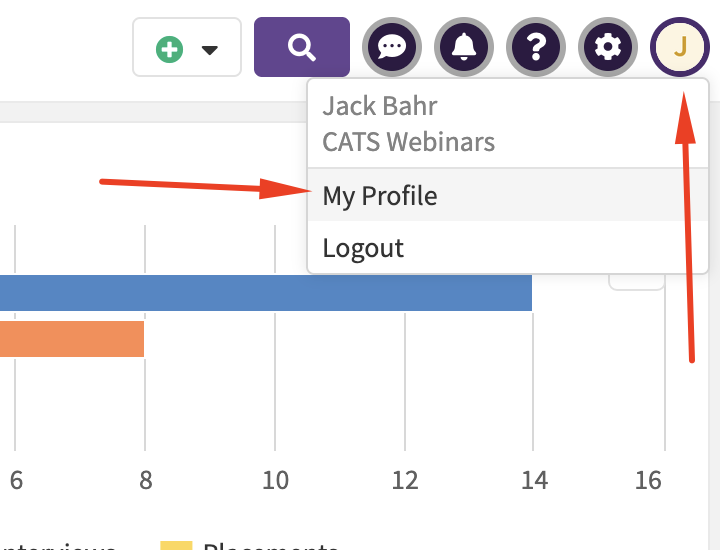
You can locate your CATS MCP key settings at the bottom of the My Profile page.
Start using CATS MCP
Once connected, ask your assistant to use CATS when making a request. Include names, job titles, dates, or other details to help it find the right information.
For example:
Use CATS to find the Sales Manager job at Dunder Mifflin and summarize its requirements.
Review the pipeline for Wayne Enterprises' Integration Engineer and group the candidates by their current status.
Find Jane Doe in CATS and summarize their recent activity.
Review the tasks associated with ACME Corp. and list any overdue follow-ups.
If several records match, your assistant may need more information to identify the correct one.
Give your AI assistant context about CATS
After completing setup, you can paste the following into your AI conversation to explain how you want it to work with CATS.
This text provides context; it does not establish or authorize a connection.
I use CATS, an applicant tracking system. Use the connected CATS MCP tools when I ask you to find, review, or summarize information from my CATS account.

CATS contains candidates, jobs, companies, contacts, and related information such as activities, tasks, and pipelines. A job’s pipeline tracks candidates through that job’s recruiting workflow.

To start, discover the available CATS tools and make one small, read-only request to verify access. Prefer a tool that identifies the connected user or account, if available. Only confirm success after the request succeeds. Briefly explain what you can help me do, then wait for my instructions.

For future requests, use the available tool definitions to determine how to proceed. Retrieve the relevant records and base factual statements on the information returned.

Identify the records you use by name and ID, or by a record link when available. If it is unclear which record I mean, ask me to clarify. Distinguish recorded facts from your interpretations or suggestions.

If results are incomplete or you review only a selection of records, explain that limitation. If information is missing or unavailable, say so.

CATS MCP currently provides read-only access. You can analyze information and prepare drafts, but cannot change CATS records through this connection.

If CATS tools are unavailable or a request fails, explain what could not be verified and include any relevant error details. Do not claim access you have not verified.
If your assistant cannot access CATS
Confirm that you have completed the setup guide for your application and that the CATS connection is enabled for the current conversation.
If the connection is available but a request fails, try a specific record name or ID. When contacting CATS support, include the application you’re using, your request, and any error message.